
- MyRepublic
Before we start, let’s clarify: What Is Cloud Gaming?
Imagine playing the latest AAA games without needing a powerful graphics card, massive downloads, or a next-gen console. That’s the magic of cloud gaming. Instead of running the game on your own PC or console, cloud gaming lets you stream the game from powerful servers directly to your device. Think of it as the Netflix for Gaming.
Whether you’re a student with a budget laptop, a busy adult sneaking in a quick game during lunch, or a gamer tired of endless updates and downloads, cloud gaming provides a low-barrier way to jump into high-quality gameplay.
How do I Set Up a Cloud Gaming Platform on my Windows PC?
Follow the steps below to get started. For most users in Singapore, Xbox Game Pass and GeForce NOW are the go-to cloud gaming platforms.
How do I set up GeForce NOW on my PC?
- Create a GeForce NOW Account: Visit GeForce NOW and sign up. You can choose from the Free, Priority, or Ultimate tiers depending on your needs.
- Download the GeForce NOW App: Install the app for Windows, or use the browser version (available on Chrome or Edge).
- Log In and Connect Your Game Store Accounts: Connect your Steam, Epic Games, or Ubisoft Connect accounts so GeForce NOW can access your owned games.
- Browse and Launch a Game: Search for a supported title in the GeForce NOW library. If you own it on a compatible store, you can launch and play immediately.
- Plug in a Controller (Optional): Many games work better with a controller. Xbox, PlayStation, or Bluetooth controllers are usually supported.
And that’s it. No installations. No updates. Just press play.
How do I set up Xbox Cloud Gaming my PC?
Simply purchase a subscription, download the Xbox app, sign in and get started! You can use your Xbox Game Pass Ultimate membership to play 100s of consoles games on PC and supported mobile devices.
- Purchase a subscription: Go to the Xbox website and choose a plan like PC Game Pass or Xbox Game Pass Ultimate, which are available in Singapore. You can also get Free Xbox Game Pass with select MyRepublic GAMER Broadband Plans.
- Download the Xbox app: Install the Xbox app for Windows 10/11 on your PC.
- Sign in: Launch the app and sign in with the Microsoft account you used to purchase your Game Pass subscription.
- Link accounts (if needed): If you have an EA Play membership included with your plan, the Xbox app will guide you to link your EA account. Make sure to use the same Microsoft account you use for your console to ensure a smooth connection.
- Start playing: You’re now ready to browse and download hundreds of games directly from the Xbox app.
⚡ Tip: Use a wired connection or GAMER Broadband with Wi-Fi 7 to reduce latency and avoid lag spikes.
Which Devices Support Streaming High-End PC Games?
One of the best parts of cloud gaming? It works on nearly everything including PC, Mac, and mobile devices.
- Windows PCs
- macOS laptops (even old MacBooks!)
- Chromebooks
- Android phones & tablets
- iPhones and iPads (via Safari browser)
- Smart TVs (with built-in or sideloaded apps)
- Web browsers (on most desktop OS)
You can start playing on your laptop and continue later on your tablet from the sofa. Cloud gaming is all about flexibility.
Can I play Cloud Gaming on my iPhone or Android Device?
Yes, absolutely! You can stream a game using your mobile device if you are a subscriber to a service like Xbox Game Pass or GeForce NOW.
What are the Best Cloud Gaming Subscription Plans that support RTX Graphics?
Free: 1-hour session limit, standard access.
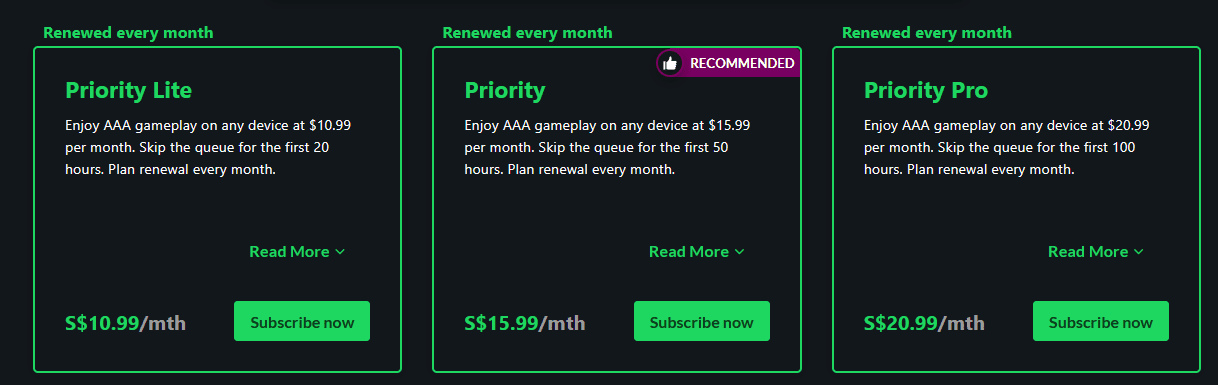
Priority Lite: S$10.99/month – Skip the queue for the first 20 hours, Up to 6-hour sessions, RTX ON for the first 20 hours.
Priority: $15.99/month – Skip the queue for the first 50 hours, Up to 6-hour sessions, RTX ON for the first 50 hours.
Ultimate: 20.99/month – Skip the queue for the first 100 hours, Up to 6-hour sessions, RTX ON for the first 100 hours.
*Visit GeForce Now for the most up to date information.
Some final words on improving your Cloud Gaming experience
Now that you’ve settled gaming on any device, the last thing you’ll need is a fast broadband connection. Lag, Ping, and Latency are some of the things you may want to keep an eye out for when selecting and optimising your connection.
Use a Speedtest to check your connection before getting started.
Cloud gaming in Singapore has opened up a world where hardware limitations are no longer a barrier to premium gaming experiences. You might prefer streaming Cyberpunk 2077 from a dusty old laptop or farming turnips in Stardew Valley on a tablet. End of the day, all you really need is a stable connection and a love for great games.
So if you’re ready to ditch downloads, skip updates, and game on your own terms, cloud gaming might be your next big upgrade. And if you’re looking for a network that can keep up with you? You know where to find us. 😉 (Check out our GAMER Broadband here.)